Develop and Configure AI Agents
Agentic Tasks let you connect a Cutover task to an AI agent and interact with the agent while the task is running. Cutover supports two types of agent:
- Cutover AI Assistant — Cutover's built-in AI assistant, which automatically receives runbook and task context.
- Custom AI agents — AI agents developed and hosted by your organisation and connected to Cutover through an integration.
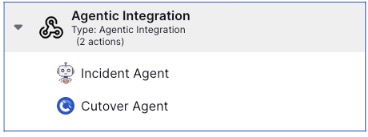
AI agents can investigate issues, analyse information, work with external systems, and recommend or perform actions. Cutover keeps the conversation and agent activity with the task, providing visibility into the work performed during a runbook.
This guide explains how to:
- Configure an agent integration
- Make the integration available to a task type
- Configure an initial prompt
- Pass context to a custom agent
- Develop a custom agent that communicates with Cutover
- Handle streaming responses and human approvals
- Use agent responses elsewhere in a runbook
Availability: Agentic Tasks require the Agentic Integration to be created. Cutover AI Assistant Chat additionally requires the Cutover AI to be enabled for your instance. Please contact your CSM to get this enabled.
How Agentic Tasks work
A typical Agentic Task follows this flow:
User
  ↓
Cutover task
  ↓
AI agent
  ↓
Streamed response
  ↓
Cutover conversation
  ↓
User
When a user sends a message, Cutover starts a new agent turn. For a custom agent, Cutover sends the conversation history, task information configured in the integration, and any payload you have configured.
The agent returns its response as a stream of AG-UI events. Cutover displays the response in the task conversation.
For actions that require human approval, the flow is:
Agent
  ↓
Approval request
  ↓
Cutover
  ↓
User approves or rejects
  ↓
Agent
The agent signals that it is waiting for approval using a CUSTOM event. The turn then finishes. When the user makes a decision, Cutover sends the decision with the next request so the agent can continue.
Configure an agent integration
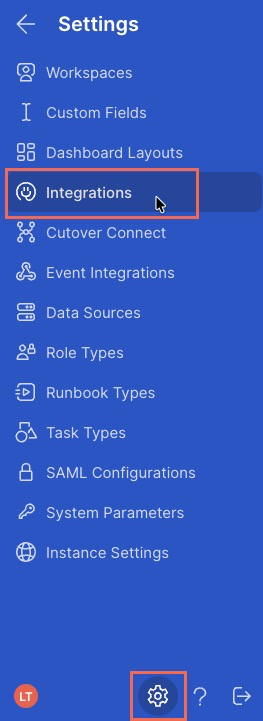
Agent integrations are configured under Settings → Integrations.
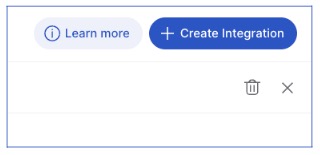
The Integration Connections page is displayed, listing any previously created integrations. Click the option in the top-right corner to create an integration.
The New Integration Connection modal is displayed.
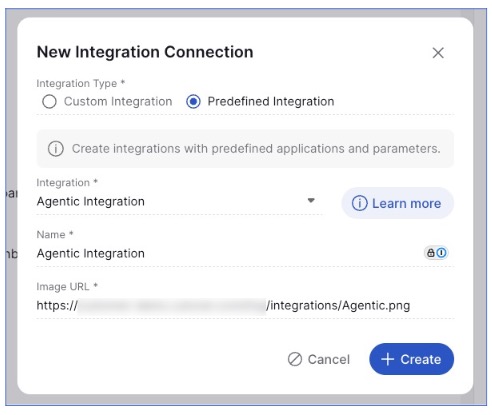
Choose Predefined Integration and then choose Agentic Integration from the Integration dropdown list. Give your integration a name and (optionally) an image URL for your integration (if this is left blank, a default image URL will be displayed). Click Create. The newly created integration will be listed at the bottom of the Integrations Connections page.
Select your newly added Custom Integration to open the Edit Custom Integration panel. Next to Integration Actions, click New.
.jpg)
Next, a new modal window will appear where you can select and complete details for your integration action.
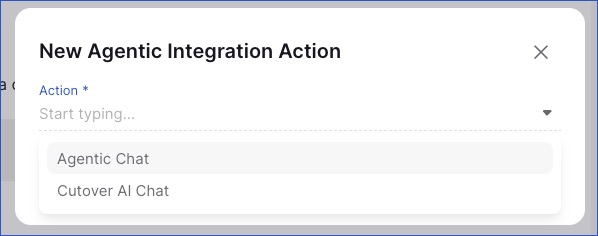
The integration action type determines how the agent will work. See the two options below for guidance on selecting the appropriate integration action type. Once saved, either integration type can be added to runbooks and used like any other Cutover integration.
- Cutover AI Assistant Chat
The Cutover AI Assistant Chat is Cutover’s built-in AI assistant for runbooks and workspaces. The integration action for this type is called: Cutover AI Chat
Select Cutover AI Chat from the Action dropdown list. This type does not require an Agent URL, payload, connection headers, or authentication settings.
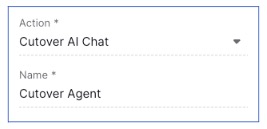
A modal window will display for you to add further information about your integration action. See this page here for further information on how to complete some of these fields. Click Create once you have finished.
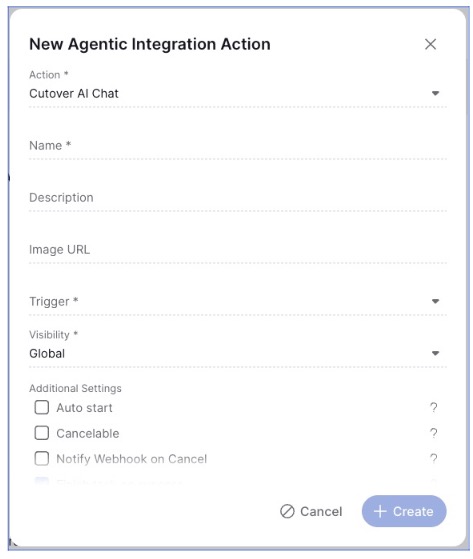
The Cutover AI Assistant Chat automatically receives the current runbook and task context, including:
- Runbook ID, name, and description
- Task ID, name, description, and stage
- Conversation history
It can retrieve additional runbook information using supported Cutover tools. These tools operate using the permissions of the user interacting with the assistant. Current supported write actions include:
- Update a runbook
- Add, update, or delete a task
- Create, update, or delete a stream
Cutover AI Assistant Chat cannot currently start, complete, or skip tasks, or add comments.
- Custom Agentic Chat
Agentic Chat lets you connect your own AI agent to Cutover. Select Agentic Chat from the Action dropdown list.
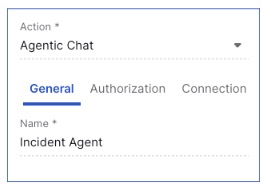
A modal window will display for you to add further information about your integration action. In the General tab, see this page here for further information on how to complete some of these fields.
Authorization Type
The Authorization Type setting controls how Cutover authenticates with your agent.
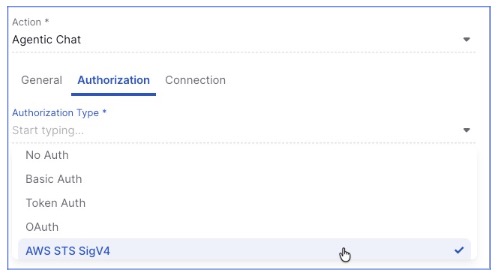
Available options are:
- No Auth
- Basic Auth
- Token Auth
- OAuth
- AWS STS SigV4
The default is No Auth.
If your agent needs to call the Cutover API, provide the required API host or other connection information through the integration payload.
Note: Do not rely on Cutover-specific headers being automatically supplied to custom agents.
Connection
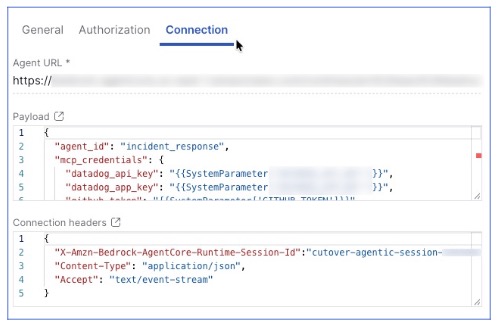
In the Connection tab, configure the integration action with:
Agent URL
Enter the URL of your agent endpoint. Cutover sends requests to this endpoint using POST. The endpoint must accept JSON and return an SSE (text/event-stream) response.
Payload
You can configure a JSON payload to provide additional context to your agent. Payload properties are merged into the top level of the AG-UI request.
For example:
{
  "task_id": {{Task.id}},
  "runbook_id": {{Runbook.id}},
  "task_name": "{{Task.name}}",
  "runbook_name": "{{Runbook.name}}"
}
When using Liquid variables:
- Leave numeric values unquoted when the receiving agent expects a number.
- Use System Parameters for secrets rather than hard-coding credentials.
- Payload values can include Liquid variables supported by Cutover.
Your payload cannot override the following AG-UI request properties:
- thread_id
- run_id
- messages
If the payload contains invalid JSON or a Liquid variable cannot be resolved, Cutover sends an empty payload object to the agent.
Connection headers
You can configure additional headers to send with requests to your agent.
Cutover sends:
- Content-Type: application/json
- Accept: text/event-stream
- Any configured connection headers
- The authentication header, when authentication is configured
Make an agent available to a task type
After configuring an integration, link its integration action to the task type where you want the agent to be available.
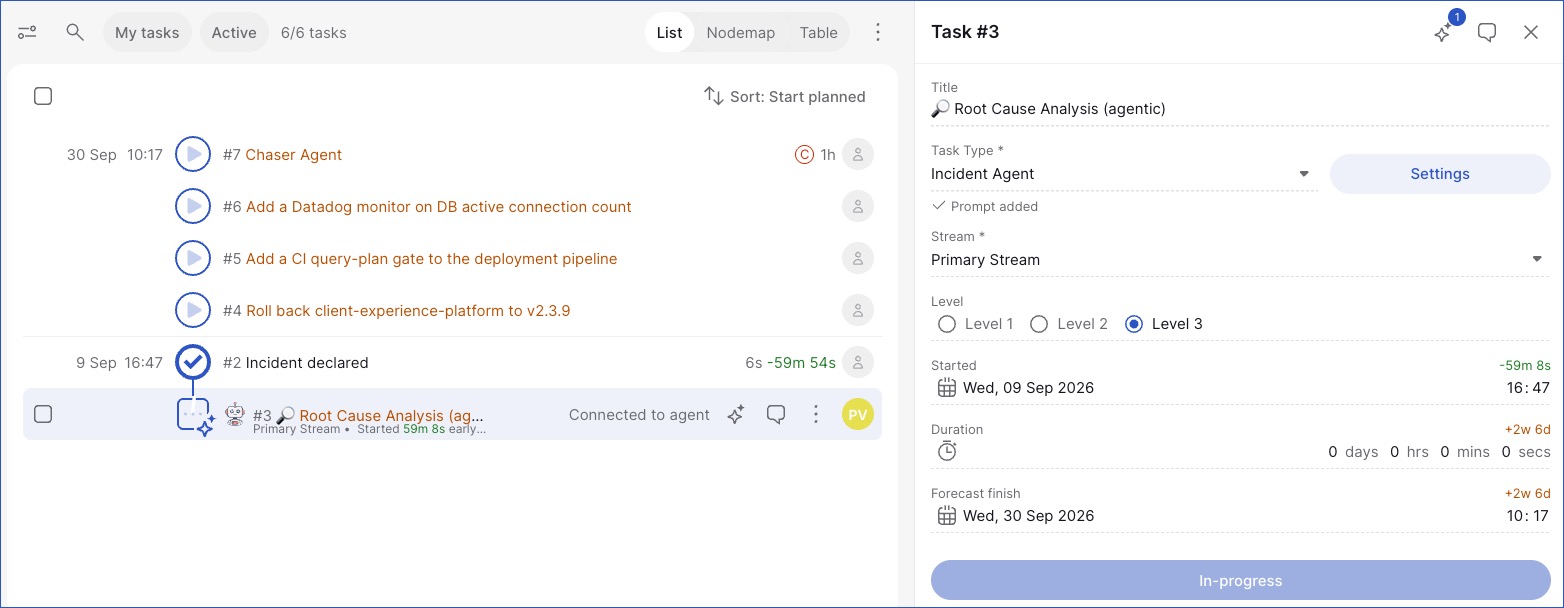
- In the runbook, create or edit a task and select the relevant task type.
- Configure the agent using Agent settings.
- Select the agent integration you want to use (either Cutover AI Assistant Chat or your own AI agent).
- The agent is now attached to the task.
The agent uses the task's Message field as its opening prompt when the task starts. See Configure the task prompt below for more information.
When a task with an agent starts, the integration connects and the task displays a Connected status. When the task is completed, skipped, or abandoned, the connection is automatically closed.
What the agent can access
A bring-your-own agent receives:
- The message sent from the task.
- The integration's configured Payload, including any Liquid variables such as {{Task.id}}.
- The conversation history.
Bring-your-own agents are not automatically aware of the rest of the runbook. If the agent requires additional runbook context, include it in the integration Payload.
The Cutover AI Assistant automatically has access to the current runbook and task context and can retrieve additional runbook information using its built-in tools.
Configure the task prompt
Use the task’s message field to define the first message sent to the agent when the task starts.
For example, a prompt could be:
Investigate the current application error and identify the most likely cause.
This message becomes the opening prompt in the conversation. If the message field is left blank, Cutover does not automatically send a first message.
If an Initial prompt contains an unresolved Liquid variable, the task fails visibly with:
Initial prompt could not be resolved
SystemParameter and User variables do not resolve in the Initial prompt. Use the integration payload when you need to pass these values to a custom agent.
Restarting a task does not resend the initial prompt.
Pass context to a custom agent
Unlike Cutover AI Assistant Chat, a custom agent does not automatically know the contents of the runbook.
Use the integration payload to provide the context your agent needs.
For example:
{
  "task_id": {{Task.id}},
  "runbook_id": {{Runbook.id}},
  "task_name": "{{Task.name}}",
  "runbook_name": "{{Runbook.name}}"
}
You can also use System Parameters to provide configuration or credentials:
{
  "api_key": "{{SystemParameter['MY_AGENT_API_KEY']}}"
}Note: Never hard-code secrets in an integration payload.
Cutover AI Assistant and Agentic Chat context
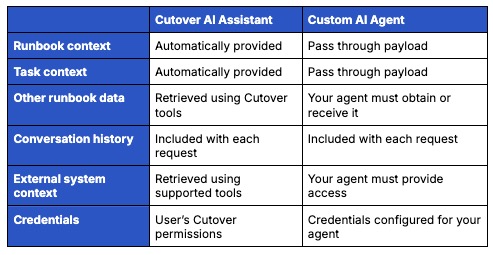
The exact information you pass depends on what your agent needs to perform its task. Common examples include task identifiers, runbook identifiers, task names, runbook names, environment details, and credentials stored in System Parameters.
Calling back into Cutover
If your custom agent needs to call the Cutover API, pass the API host to the agent through the integration payload.
For example:
{
  "base_url": "https://api.dev.cutover.cloud"
}
Use the Cutover API host rather than the Cutover application URL when making API requests.
Where possible, we recommend using Cutover MCP rather than calling the Cutover API directly. Cutover MCP provides tools that allow agents to interact with Cutover without requiring direct API integrations.
Develop a custom AI agent
Custom AI agents communicate with Cutover using the AG-UI streaming protocol.
Your agent must:
- Accept a POST request containing the AG-UI request.
- Read the conversation history and any configured payload.
- Process the current user turn.
- Return an SSE (text/event-stream) response.
- Send the appropriate AG-UI events as the agent works.
- Signal completion or failure.
Cutover sends the complete conversation history with every request. There is no Cutover-side truncation based on the number of turns or message size.
This means your agent can be stateless: it can reconstruct the conversation from the history included in each request.
See the AG-UI documentation for the protocol specification and event definitions.
Request structure
A request from Cutover has the following general structure:
{
  "thread_id": "<conversation id>",
  "run_id": "<uuid>",
  "messages": [
    {
      "id": "12",
      "role": "user",
      "content": "Investigate the current application error."
    },
    {
      "id": "13",
      "role": "assistant",
      "content": "",
      "tool_calls": [
        {
          "id": "tc-1",
          "type": "function",
          "function": {
            "name": "query_logs",
            "arguments": "{...}"
          }
        }
      ]
    },
    {
      "id": "13-tool-tc-1",
      "role": "tool",
      "content": "...",
      "toolCallId": "tc-1"
    },
    {
      "id": "13-answer",
      "role": "assistant",
      "content": "Likely cause is ..."
    }
  ],
  "state": {},
  "tools": [],
  "context": [],
  "forwarded_props": {},
  "...your configured payload keys..."
}
Your configured payload is merged into this object at the top level.
Cutover does not advertise tools to custom agents by default, so tools is empty unless this behaviour changes in a future version.
The messages array contains the complete conversation history for the task.
Each new user message starts a new agent turn.
Stream responses using SSE
Your agent returns responses as Server-Sent Events. A basic conversational response should include the appropriate run lifecycle events and text content. For example:
event: RUN_STARTED
data: {"threadId":"...","runId":"..."}

event: TEXT_MESSAGE_CONTENT
data: {"messageId":"...","delta":"The most likely cause is..."}

event: TEXT_MESSAGE_CONTENT
data: {"messageId":"...","delta":" the database connection timing out."}

event: RUN_FINISHED
data: {"threadId":"...","runId":"..."}
For a basic conversational agent, implement the run lifecycle and text events required to stream the response.
For agents that perform tools or require human approval, implement the additional events described below.
Streaming timeout
The connection times out after 300 seconds without data being received. This is an idle timeout, not a maximum duration for the agent turn.
If the stream times out, Cutover does not display an error in the conversation. The loading indicator is cleared when the connection is re-established.
An agent-generated error is displayed when the agent sends a RUN_ERROR event.
Supported AG-UI Events
Cutover consumes the following AG-UI events:
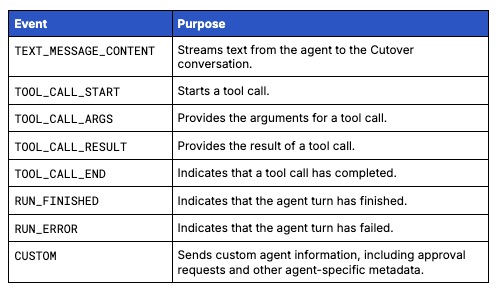
Cutover's server consumes only the events listed in the table above.
RUN_STARTED and TOOL_CALL_END may be emitted by your agent as part of a valid AG-UI stream, but they are handled by the browser rather than the server.
Any other AG-UI events are passed through to the browser unchanged and are not interpreted by Cutover's server.
An agent must emit at least TEXT_MESSAGE_CONTENT and a terminal RUN_FINISHED or RUN_ERROR event. Other events are optional depending on the integration.
Note: `parentMessageId` on `TOOL_CALL_START` is a Cutover extension and is not part of the standard AG-UI specification.
Handle conversation history
Cutover sends the complete conversation history with every request.
For example, a later request can contain:
- The original user prompt.
- The agent's previous response.
- Previous tool calls.
- Tool results.
- Subsequent user messages.
- Previous agent responses.
Your agent does not need to maintain its own conversation state between requests if it can reconstruct the required context from messages.
The history is not truncated by Cutover based on turn count or message size.
Shared conversation model
Agentic Task conversations are associated with the task, not with an individual user. All users with access to the task share the same conversation history and agent activity.
Because Cutover sends the complete conversation history with each request, custom agents should assume that multiple users may contribute to the same conversation over the lifetime of the task.
Handle human-in-the-loop approvals
If your agent needs a user to approve an action, use a CUSTOM event named deferred_tool_requests.
The event contains the tool calls that require approval. For example:
event: CUSTOM
data: {
  "name": "deferred_tool_requests",
  "value": {
    "approvals": [
      {
        "tool_call_id": "tc-1",
        "tool_name": "run_command",
        "tool_args": {
          "cmd": "..."
        },
        "high_impact": false
      }
    ]
  }
}
After sending the approval request, finish the current run normally:
event: RUN_FINISHED
data: {
  "threadId": "...",
  "runId": "..."
}
The CUSTOM event is the signal that the turn is waiting for human approval.
User approval options
The user can:
Allow once
Select More approval options:
Allow "<action>" for this conversation
Allow all actions for this conversation
Reject
Standing approvals are matched by tool name, not by tool arguments.
Tools identified as high impact cannot be covered by a standing approval. They require confirmation every time.
For Cutover AI Assistant Chat, high-impact tools currently include deleting a task and deleting a stream.
If an approval request contains a mixed batch of actions, the decision applies to the batch as a whole.
Receive the approval decision
The approval decision is included at the top level of the next request.
For an approved tool call:
{
  "deferred_tool_results": {
    "approvals": {
      "tc-1": true
    }
  }
}
For a rejected tool call:
{
  "deferred_tool_results": {
    "approvals": {
      "tc-1": false
    }
  }
}
Approved tool calls are replayed in messages without a tool result so that your agent knows that the action has been approved and can execute it.
An approval does not give your agent additional Cutover permissions. For Cutover AI Assistant Chat, actions continue to operate within the interacting user's Cutover permissions. A custom agent uses the credentials available to that agent.
Optional: identify high-impact tools
At the start of a stream, your agent can identify tools that should always require confirmation. Use a CUSTOM event named high_impact_tools:
event: CUSTOM
data: {
  "name": "high_impact_tools",
  "value": {
    "tool_names": [
      "delete_something"
    ]
  }
}
Tools identified this way cannot be covered by a standing approval.
Agent response variables
You can use the text returned by an Agentic Task elsewhere in the same runbook. Use the AgentResponse Liquid variable:
{{AgentResponse['0###4']}}This references the first turn of task 4. To reference a later turn:
{{AgentResponse['2###4']}}To reference the latest available response:
{{AgentResponse['###4']}}The conversation turn number is zero-based. For example, 0###4 references the first response from task 4.
The response contains the assistant's text only. Tool calls are not included. References resolve only within the same runbook.
Use the variable picker
Where the variable picker is available:
- Type {{
- Select the relevant task.
- Select Agentic Task.
- Select either:
- agent response (latest turn)
- agent response (turn number)
When using agent response (turn number), edit the inserted turn number as required.
Some surfaces, such as the payload editor, do not provide the task picker. You can use the template directly:
{{AgentResponse['<turn>###<task number>']}}
When AgentResponse resolves
An AgentResponse becomes available when the turn has settled. A turn that remains stuck in a streaming state can become addressable after 15 minutes.
AgentResponse renders as empty when used in:
- A runbook title
- A runbook description
It also renders as empty everywhere when Agentic Tasks are not enabled.
If an AgentResponse cannot be resolved:
- Integration payloads and agent prompts fail visibly.
- Custom field values resolve to empty.
- Emails resolve to empty.
- Task titles and descriptions resolve to empty.
- Agent responses containing Liquid are treated as text and are not evaluated again.
Malformed AgentResponse references are validated when saved where validation is supported.
Use Agentic Tasks to modify runbooks
If an agent needs to add or delete tasks during an active run, the runbook must be configured as a dynamic runbook. Editing an existing task does not require a dynamic runbook.
Paused or planning runbooks can be modified without requiring the dynamic runbook type.
For Cutover AI Assistant Chat, runbook and task write actions are subject to the user's permissions and the available Cutover tools.
Agent lifecycle
An Agentic Task follows the task lifecycle.
When the task starts
Cutover:
- Establishes the connection to the configured agent.
- Sends the initial task prompt if one is configured.
- Makes the conversation available to users with access to the task.
While the task is running
Users with edit permission can send messages and interact with the agent while the task is active.
Conversation history is retained with the task.
When the task ends
When the task is completed, skipped, abandoned, or cancelled, the conversation becomes read-only. The user can no longer create additional turns or send further prompts to the agent.
Cutover AI Assistant Chat displays:
- Connected to Cutover AI
- Connection failed
- Conversation closed
Custom agents display:
- Connected to agent
- Connection failed
- Connection to agent closed
Rehearsals
Agentic integrations can be configured to execute during rehearsals using Execute in Rehearsal on the integration action in Settings → Integrations.
When this setting is not enabled, the agent is skipped during rehearsal.
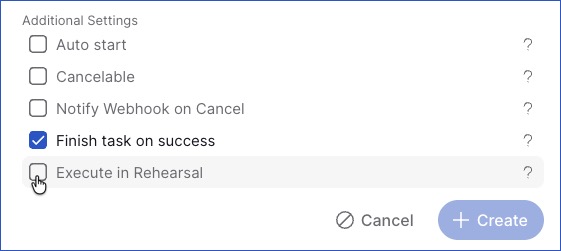
The task displays:
Integration skipped in rehearsal
Rehearsal conversations can persist into the live run's history. Consider this when designing agents and prompts that are used during rehearsals.
Pause and cancel behaviour
If an agent is responding when a user pauses the run or cancels the run, Cutover warns:
An agent is still responding. Pausing now will end its reply.
The current response is interrupted and the conversation retains the response received up to that point.
When a run is paused or cancelled, the conversation is retained with the corresponding version of the runbook.
Messaging availability
Users can send messages only when the task is in a state that supports agent interaction.
Depending on the task state, Cutover can display messages such as:
- Start the runbook and task to send a message.
- Start the task to send a message.
- New messages are unavailable while the run is paused/complete/cancelled.
- The task has been completed.
- The task has been skipped.
- The task has been abandoned.
- The agent is unavailable in rehearsal.
Users need runbook edit permission to send, stop, or approve agent activity. Users with runbook view permission can read the conversation.
The UI does not disable the message composer for view-only users; attempting to send a message returns an error.
Security considerations
When developing a custom agent:
- Follow the principle of least privilege.
- Protect authentication credentials.
- Store secrets in System Parameters rather than hard-coding them.
- Validate data received from Cutover before using it.
- Secure the agent endpoint and its dependencies.
- Give the agent only the external-system credentials it needs.
- Require human approval for actions that could have significant operational impact.
- Make sure credentials provide access to the correct organisation, account, environment, or data source.
For AWS STS SigV4 integrations, make sure the required role exists in the agent's AWS account and has an appropriate trust policy for the calling account.
Test your custom agent
Before using an agent in a production runbook, we recommend you test the complete interaction.
- Test the connection
Confirm that Cutover can reach the configured Agent URL. - Start a task
Verify that the task connects to the agent. - Test the initial prompt
Confirm that the prompt is received when the task starts. - Test a user message
Send a message and confirm that a new request is received. - Test streaming
Confirm that the agent returns SSE events and that text appears progressively in Cutover. - Test conversation history
Send a second message and confirm that the agent receives the previous conversation. - Test payload values
Verify that Liquid variables resolve to the expected values. - Test authentication
Confirm that your configured authorization method and connection headers are received correctly. - Test tool calls
If your agent uses tools, verify the tool call lifecycle and results. - Test approvals
Trigger an action requiring approval and verify the deferred_tool_requests event and subsequent approval decision. - Test AgentResponse
Reference the agent's response from another task or supported runbook field. - Test task completion
Complete the task and confirm that the connection closes and the conversation becomes read-only.
Troubleshooting
Connection failed
Check:
- The agent URL is correct.
- Network access.
- The endpoint is reachable from Cutover.
- The endpoint is accepting the expected request.
- Authentication is configured correctly.
- AWS STS configuration and trust policies are correct if using cross-account authentication.
The agent doesn't receive runbook or task information
Custom agents don't automatically receive the full runbook context. Check that required values have been included in the integration payload.
A secret isn't available to the agent
Check that the secret is stored as a System Parameter and referenced correctly in the payload. Don't add the secret directly to the integration configuration.
The agent rejects a task or runbook ID
Check that numeric Liquid variables are not enclosed in quotes when the receiving API expects an integer.
An agent can't modify the runbook
If your agent needs to write back to the runbook, check that the runbook is configured as a dynamic runbook. Check that the required runbook type and user permissions are available.
The agent can't find external data
Check that the credentials supplied to your custom agent have access to the required organisation, account, environment, or data.
Approval is not displayed
Confirm that the agent emits the CUSTOM event named deferred_tool_requests and then sends RUN_FINISHED.
Agent turn fails
Check whether the agent returned a RUN_ERROR event and inspect the agent's server-side logs.
Related Content
